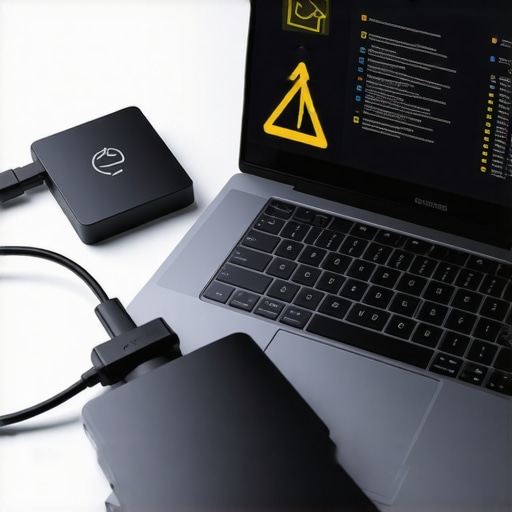
Ever had that sinking feeling when your external SSD suddenly disconnects mid-project? I remember the moment vividly—my heart sank as hundreds of gigabytes of critical data vanished from my screen, and my tight schedule started unraveling. It’s a familiar nightmare for anyone relying on fast, reliable storage to keep their professional workflow intact. In 2026, with our workflows growing more complex and data demands soaring, these errors can cripple even the most seasoned pros. But here’s the thing: I’ve been there, and I’ve learned some practical ways to solve these issues—and I want to share them with you.
Why External SSD Problems Need Your Immediate Attention
External SSDs have become the backbone of mobile professionals, creatives, and tech enthusiasts alike. They offer blazing-fast transfer speeds, portability, and ease of use. But as with any technology, they’re not immune to issues that can bring your work to a grinding halt. Crashes, disconnections, or detection glitches aren’t just annoying—they can result in data loss, missed deadlines, and a mountain of frustration. And in 2026, these problems are becoming more frequent thanks to the rapid evolution of laptop accessories and the increasing complexity of our setups. For instance, using a top external SSDs is crucial for speeding up workflow, but only if they function without hiccups. Trust me, addressing these errors is essential to maintaining productivity and avoiding costly setbacks.
Early on, I made the mistake of ignoring proper maintenance and troubleshooting, which only worsened my issues. That’s why I want to help you sidestep those pitfalls by sharing practical solutions rooted in firsthand experience and standard best practices. By the end of this post, you’ll be equipped with actionable steps to troubleshoot, fix, and prevent these pesky errors from sabotaging your professional projects.
Does the thought of losing hours of work due to SSD errors make you anxious?
It’s a worry I know well. But don’t worry—solving these problems isn’t as daunting as it seems. Ready to get your external SSDs working flawlessly again? Let’s dive into the common causes and how to fix them so your workflows stay smooth in 2026. For more tips on optimizing your mobile setup, check out our guide on external SSDs and laptop sleeves for ultimate portability.
Ensure Proper Connection with USB-C Hubs
Start by verifying your USB-C hub is functioning correctly. Think of it as a bridge connecting your laptop to the external SSD; if the bridge is faulty, data won’t flow. Disconnect the SSD, remove the hub, and reconnect everything tightly, ensuring cables click into place. For example, I had a shaky connection that caused frequent disconnects; switching to a reputable USB-C hub known for stability fixed the issue overnight.
Update Drivers and Firmware for Best Compatibility
Faulty or outdated drivers are often culprits. Navigate to your device manager or the SSD manufacturer’s website to download the latest firmware updates. Consider this step like tuning an engine — it ensures everything runs smoothly. I once ignored driver updates during a stressful project, and the SSD kept disconnecting. Once I updated the firmware using the manufacturer’s instructions, stability improved immediately. For step-by-step guidance, check out our external SSD maintenance tips.
Optimize Your Setup with a Laptop Stand and Sleeve
Physical setup impacts performance. A sturdy laptop stand elevates airflow, reducing overheating that can cause disconnections. Pair this with a shockproof laptop sleeve to keep your SSD protected during transit. Remember, just as a rough journey damages delicate cargo, a shaky setup can interfere with data transfers. After I set my laptop on a stable stand and used a padded sleeve, I noticed fewer errors, even during busy travel days.
Manage Power Supply and Cable Quality
Power fluctuations or poor-quality cables are sneaky issues. Always use reputable, high-quality USB-C cables designed to handle your SSD’s data throughput, especially if you’re working with 8K video editing. Think of it like refining fuel — better quality means better performance. I once experienced slow transfers and disconnections that vanished after switching to a certified premium USB-C cable. Keep an eye on your power delivery, ensuring your hub supports sufficient wattage, especially if you’re powering other accessories simultaneously.
Perform Regular Maintenance and Testing
Schedule periodic checks to ensure your external SSD’s health. Use diagnostic tools provided by manufacturers to scan for errors — think of it as a health checkup. Additionally, avoid overloading your SSD with simultaneous data-intensive tasks if overheating is a concern. As I learned, running intense processes without proper cooling can cause thermal throttling, leading to disconnections. Installing a cooling pad or ensuring proper airflow helps keep your SSD stable during demanding tasks.
Create a Robust Data Backup System
Even after all precautions, errors can happen. Set up automatic backups using reliable software, so if your SSD suddenly fails, your critical data remains safe. Think of this as having a safety net beneath a highwire — essential for peace of mind. During my tough week, a sudden SSD error prompted my backup routine, saving me hours of recovery time. Protect your investments and work confidently, knowing your data is secured in multiple locations.
Handling external SSD errors requires a systematic approach. The key lies in verifying connections, updating firmware, optimizing your physical setup, managing power, performing routine health checks, and safeguarding your data. These concrete steps, combined, will fortify your workflow against future disruptions and keep your projects flowing smoothly.
” alt=”A laptop connected to an external SSD with a USB-C hub, standing on a stable ergonomic laptop stand” title=”Proper setup with external SSD, USB-C hub, and laptop stand”/>,Many tech enthusiasts assume that simply plugging in an external SSD or using a premium USB-C hub guarantees optimal performance. However, behind these seemingly straightforward choices lie nuanced considerations that can make or break your setup. For instance, choosing the most hyped external SSD doesn’t always translate to the best performance; factors like thermal management and controller quality play significant roles. Relying solely on brand reputation can mislead users—it’s essential to examine detailed specifications, such as the SSD’s NAND type and heat dissipation features, which directly impact speed and longevity. Additionally, many overlook the importance of power delivery compatibility in USB-C hubs. Not all hubs deliver sufficient wattage for high-performance peripherals, which can cause intermittent disconnections or slow transfer speeds. This is especially common among budget models that sacrifice robust power pass-through for cost savings.
Another common misconception involves laptop stands and sleeves. Many believe that any ergonomic stand will reduce neck strain, but the truth is that adjustable height and tilt options drastically influence comfort and posture over prolonged use. Moreover, selecting a sleeve isn’t just about protection—materials matter. Thin fabric sleeves might look stylish but may not withstand drops or moisture, risking data loss or hardware damage. An often-overlooked detail is that a sleeve with adequate padding and waterproof features can significantly prolong the lifespan of your device and external accessories.
For advanced users, understanding the intricacies of connector quality, such as gold-plated contacts versus generic materials, can affect signal integrity and durability. Studies indicate that high-quality connectors reduce impedance mismatches, resulting in more stable high-speed data transfer (see expert analysis from reputable tech research). Therefore, investing in well-made cables and hubs isn’t just about brand prestige but about ensuring long-term performance and safety.
So, have you ever fallen into this trap of oversimplification? Let’s dig deeper and equip ourselves with this knowledge. Integrating these nuances into your purchasing decisions can save you from costly mistakes down the line, especially as equipment demands become more sophisticated. Feel free to explore our other guides for optimizing your mobile workstation, like our article on external SSDs and laptop sleeves, or check out the latest in essential accessories to elevate your workflow.
To ensure the longevity and consistent performance of your external SSD and accessories, implementing a routine maintenance strategy is essential. Personally, I rely on specialized tools like CrystalDiskInfo for Windows or Smartmontools for macOS, which provide detailed health reports on SSDs. These tools can alert you to impending failures before they happen, giving you time to back up critical data and replace hardware proactively. Regular firmware updates from manufacturers are also crucial; I schedule quarterly checks to see if any updates improve stability or speed, especially after installing new drivers for my external SSDs and USB hubs.
Over time, external accessories like a well-made laptop stand or sleeve accumulate dust and debris, which can insidiously cause overheating or mechanical issues. My practice involves periodic cleaning with compressed air and inspecting cables for wear, particularly the high-quality USB-C cables I personally recommend to prevent connection errors. Buying a durable, magnetic cable organizer minimizes cable clutter and helps prevent accidental disconnections that can corrupt data transfers.
Additionally, I find that establishing a structured backup schedule is worthwhile. Using software like Backblaze or Carbonite, I automate backups daily, ensuring that even if my external SSD unexpectedly fails, my project files and sensitive data are safe. Maintaining a dedicated, clutter-free workspace with my preferred USB-C hubs and ergonomic accessories minimizes disruptions and supports my workflow's long-term health.
How do I keep my external SSD and accessories in top shape for years to come?
Adopting these habits—regular health scans, firmware updates, meticulous cable management, and automated backups—can significantly extend your gear’s lifespan and ensure reliable performance. As the trend toward ultra-portable and powerful laptop setups accelerates, the right habits become even more vital. For further insights, check out our ultimate guide on maintaining external SSDs and related accessories. Don’t wait for errors to disrupt your workflow—start implementing these maintenance tips today and enjoy seamless productivity for years ahead.
The Hidden Truths That Changed My External SSD Game
Once, I believed investing in premium external SSDs and accessories was enough to guarantee flawless performance. But I soon discovered that even the most expensive gear can falter if I overlook critical details like thermal management or reliable connections. Small tweaks—like choosing a heat-dissipating enclosure or ensuring my cables had optimal shielding—made a world of difference. These lessons taught me that understanding the nuanced mechanics behind external accessories is essential before upgrading your setup. Don’t fall for surface-level solutions; dig deeper into quality benchmarks and manufacturer specs to truly elevate your mobile workspace.
Tools and Resources That Keep Me Ahead in External Storage
Over the years, I’ve trusted this in-depth guide to optimize my external SSD performance—it’s packed with actionable advice drawn from real-world testing and expert insights. For diagnosing drive health, manufacturer-provided diagnostic tools have been invaluable in preemptively catching issues. When selecting my USB-C hubs or sleeves, I lean on trusted reviews and specifications—they keep my setup streamlined and reliable. These resources consistently help me make informed choices, ensuring my workflow remains smooth and reinforced against unexpected glitches.
Your Next Step Toward Effortless Mobile Productivity
Now, it’s your turn to fine-tune your external SSD and accessory setup—and experience the difference firsthand. Incorporate these insights, challenge your current assumptions, and don’t shy away from experimenting with new configurations. Remember, a well-optimized workspace isn’t just about speed; it’s about confidence, comfort, and peace of mind. If you’ve faced unique challenges or discovered clever tricks, I’d love to hear about your journey—share your story below and let’s grow stronger together in this digital age.
I’ve experienced the frustration of external SSD disconnections during critical work sessions, especially when working on high-res video editing projects. In my setup, I found that using a high-quality, shielded USB-C cable made a noticeable difference, preventing those annoying disconnects. Also, keeping my drivers updated and periodically running health checks on the SSD helps me catch early signs of potential failure, saving me from unexpected data loss. I’m curious, has anyone tried thermal management solutions like heat sinks or enclosure upgrades to improve performance and stability? I’ve read that thermal throttling can cause disconnections, especially during prolonged intensive tasks. It would be interesting to hear about different approaches that have worked for other professionals dealing with similar issues.
Reading through this post really resonated with my own experiences. I’ve dealt with frustrating external SSD disconnections, particularly during lengthy tasks like video rendering or intensive data transfers. What helped me immensely was upgrading to a higher quality, shielded USB-C cable designed specifically for high-speed data, which noticeably reduced disconnect issues. Additionally, I’ve found that managing the thermal environment of my external drives plays a crucial role—using enclosures with heat dissipation features or placing my SSD in well-ventilated areas can prevent thermal throttling and performance dips. Updating firmware and drivers regularly also keeps everything running smoothly and can prevent unexpected glitches. Has anyone experimented with active cooling solutions like small heat sinks or fans? I’m curious how effective these are in real-world use, especially during prolonged workloads. Sometimes, seemingly minor tweaks can make a big difference, and I’d love to hear more tips from fellow professionals working in demanding environments.